AI images
Add an image
Section titled “Add an image”In New post or Studio choose AI image, Upload, Library or URL. Each AI image uses one image credit from your monthly allowance, and the credits left are shown beside the button. Use blog image picks a suitable picture from the source article instead.
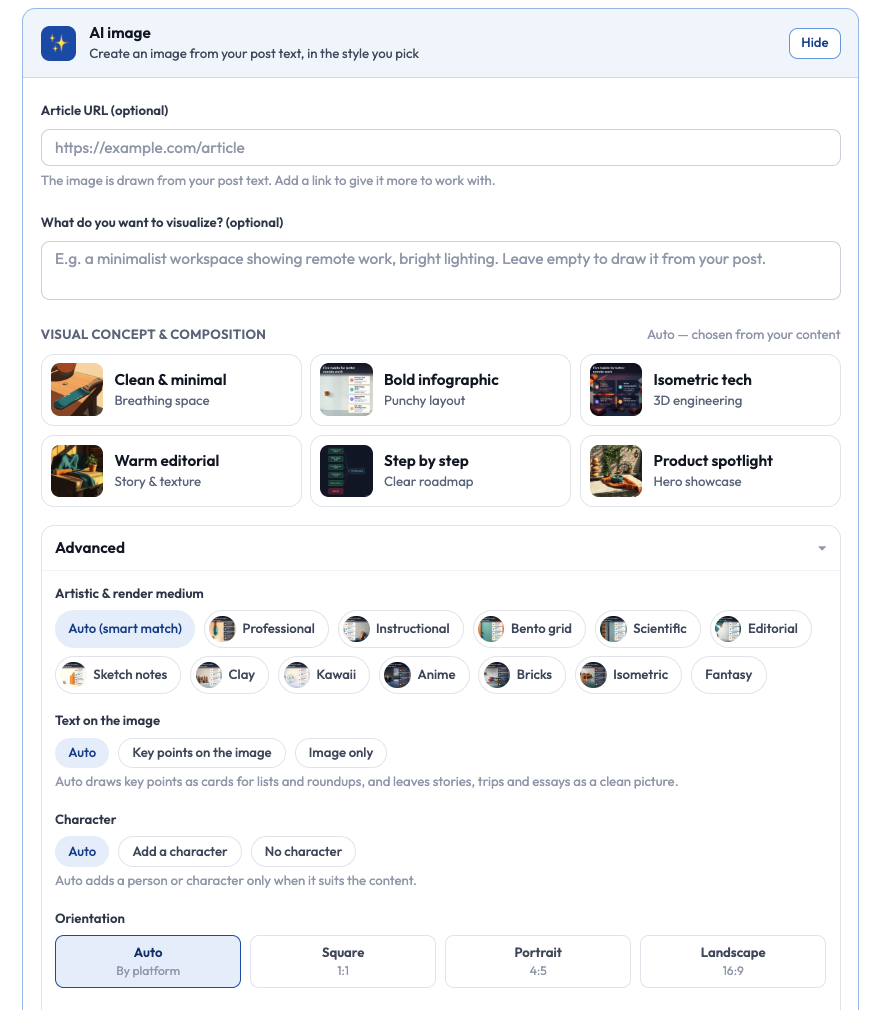
In the AI image panel you can:
- Add an Article URL (optional) to give the image more to work with. Otherwise the image is drawn from your post text.
- Describe What do you want to visualize? (optional). Leave it empty to draw it from your post.
- Pick a Visual concept & composition: Clean & minimal, Bold infographic, Isometric tech, Warm editorial, Step by step or Product spotlight. Auto chooses one from your content.
- Open Advanced to set the Artistic & render medium (for example Professional, Instructional, Bento grid, Sketch notes, Clay, Anime or Isometric), Text on the image (Auto, Key points on the image or Image only), Character (Auto, Add a character or No character) and Orientation (Auto by platform, Square 1:1, Portrait 4:5 or Landscape 16:9).
Improve an image
Section titled “Improve an image”On a draft choose Improve image, describe the change, and a new image is offered beside the current one. Choose Use this image or Keep current. Each attempt uses one credit, even if it fails.
Styles
Section titled “Styles”Advanced controls (style, detail, orientation) are available on Premier. Diagram-style images (architecture, workflow) can be drawn by the native renderer.
Marking
Section titled “Marking”AI images carry a small “AI-GENERATED” badge and hidden metadata. Anyone can check an image at the public verify page. Metadata can be lost if an image is re-saved, so a missing mark does not prove an image is not AI-made.
Instagram needs a JPEG between 4:5 and 1.91:1 and under 8 MB. VedXAI converts for you.
Team photos
Section titled “Team photos”Advanced and Premier can pick curated real photos from the VedXAI Photos tab in the media library.