
Posts and calendar
List view
Section titled “List view”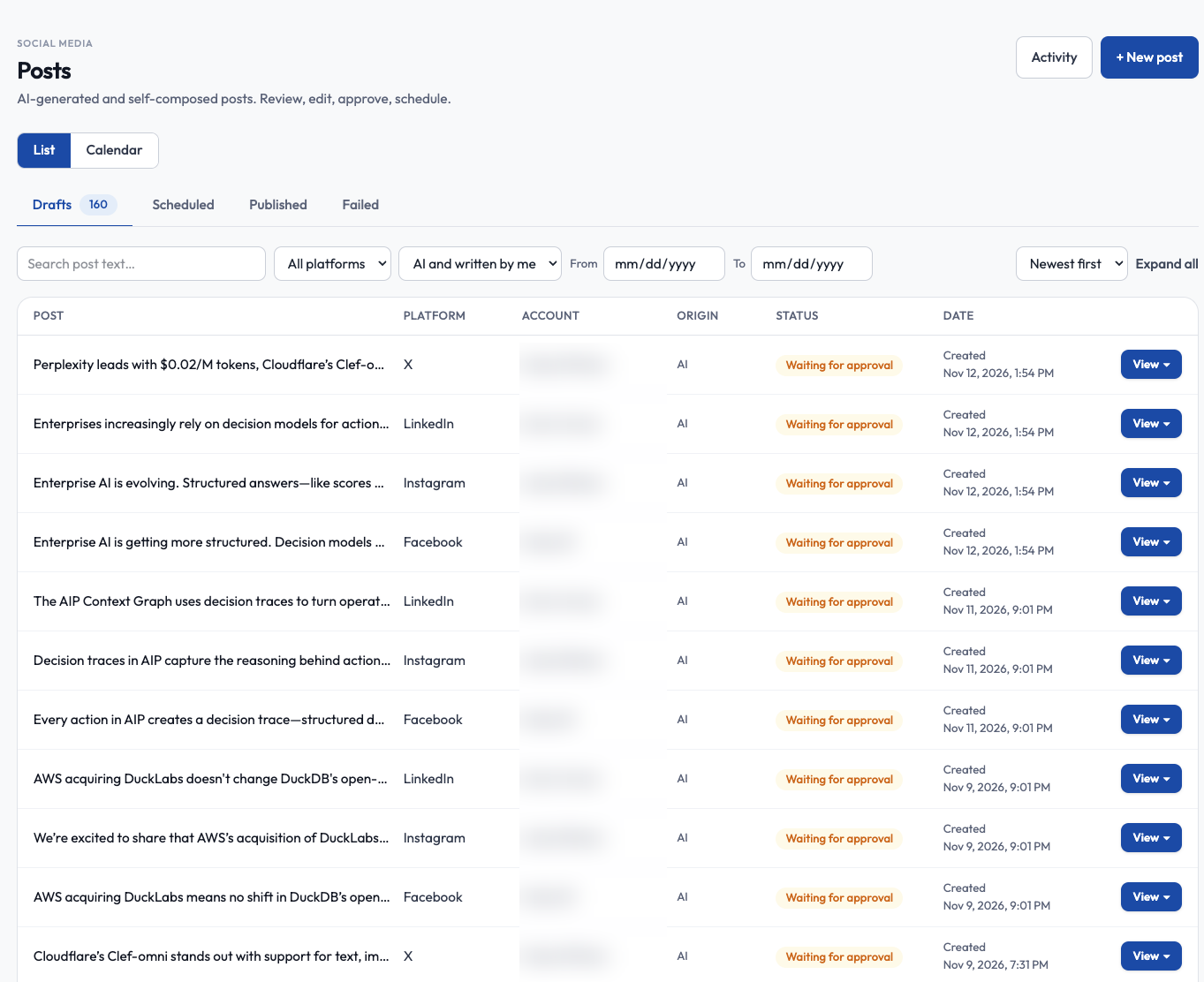
At the top, Activity opens your runs and + New post starts a post. Use the List and Calendar switch to change view, and the Drafts, Scheduled, Published and Failed tabs to filter by stage; the count beside Drafts shows how many you have.
Posts shows one row per post: preview, platform, account, origin (AI or written), status and date. Click a row, or Expand all, to see the full card with a platform-style preview.
Use search, platform, origin, date range and sort. Choose 10, 20 or 50 posts per page. Your filters stay in the page address so Back works.
Calendar view
Section titled “Calendar view”Switch to Calendar to see a month grid. Use the arrows to change month and Today to jump back. Times are shown in your own time zone.
What you see on each day:
- Scheduled, publishing, published, failed and waiting-for-approval posts, as small chips with a coloured dot for the platform (LinkedIn, X, Instagram, Facebook, Bluesky). Grey means published and red means failed. Hover a chip for the full text, account and status.
- Dashed purple chips for automations and occasions due to run that day. Click one to open or edit it. On an occasion chip, the × cancels it.
- A “+N more” line when a day has more than three items.
What you can do:
- Start a post. Click a day (the + on the day) to open New post scheduled for that day.
- Move a post. Drag a scheduled LinkedIn or X post to another day. It keeps its time of day. You cannot drop it on a day that has already passed, or at a time less than a few minutes away.
- Delete a post. Use the bin on a chip you are allowed to delete and confirm with Yes.
- Plan the month. If Plan month appears beside Today, it opens the Monthly planner for the month you are viewing.
Instagram and Facebook posts cannot be dragged because they are scheduled by confirming the exact preview. Open the post to change its time.
Moving a post sends it through the same release checks as scheduling, so it is checked again, and its earlier approval is cleared. An approver may need to confirm again. Posts that are not scheduled (drafts, published, failed) cannot be moved, and nothing can be moved while publishing is paused.
After you post
Section titled “After you post”LinkedIn and X show a live banner with a View post link. Instagram and Facebook use their own confirm dialogs. Failed posts show the reason.
Evidence
Section titled “Evidence”When enabled, Open evidence shows the claims in a post, the source excerpts behind them and whether the source changed since the post was written.