Automations
An automation writes and schedules posts for you on a repeating schedule. You choose where it finds things to post about, which channels it posts to, when it runs and whether you review each post first.
Automations are available on Advanced and Premier. How many you can have, and how often one may run, depends on your plan. See Check your usage limits. For one-off festival and holiday posts, see Occasions.
The Automations page
Section titled “The Automations page”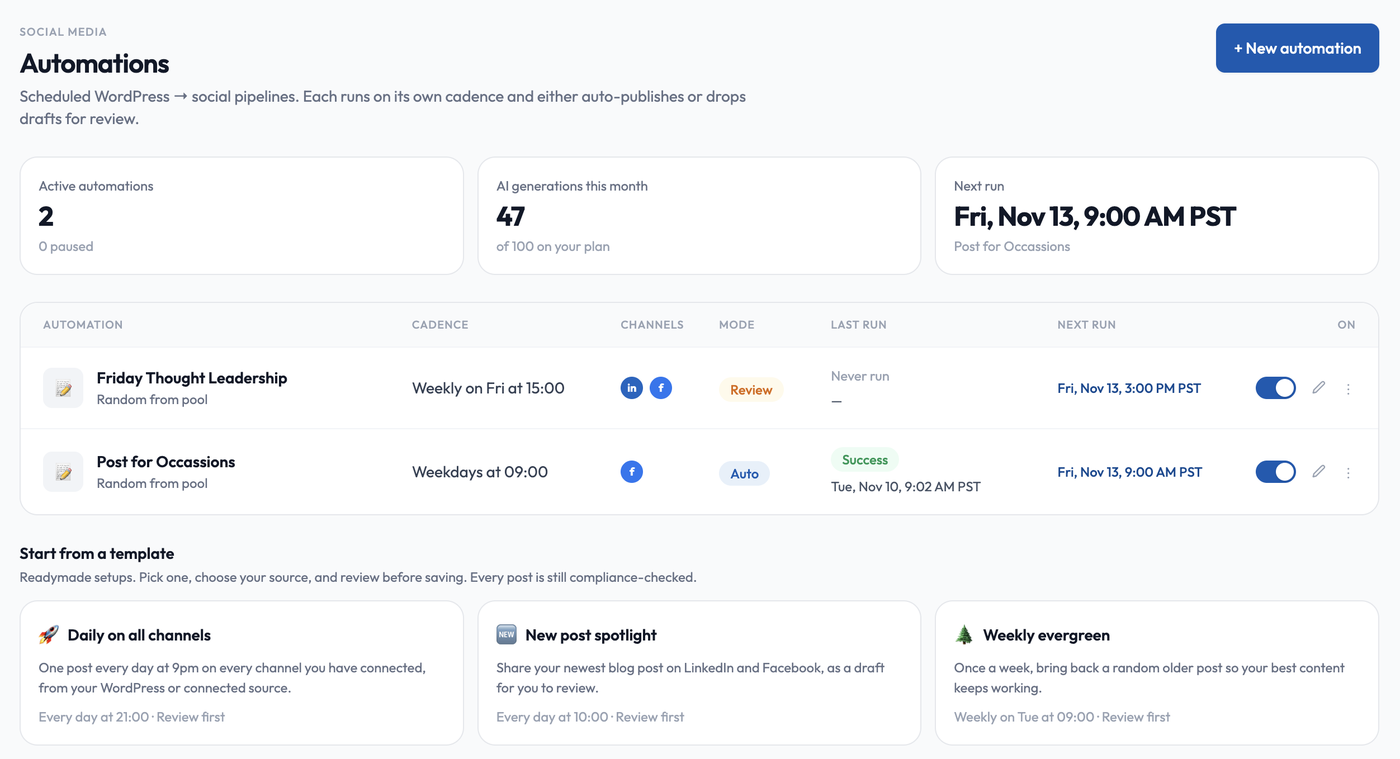
Open Automations in the left menu. At the top you see Active automations (and how many are paused), AI generations this month and your Next run. The table lists each automation with its Cadence, Channels, Last run (Success, Failed or Never run) and Next run (or Paused). A Review badge marks automations that wait for your approval.
For each automation you can:
- Switch it on or off with the toggle. A paused automation does not run.
- Edit it.
- Delete it from the actions menu (you are asked to confirm).
Recent jobs at the bottom shows what the latest runs produced. Open Activity for the full history.
Start from a template
Section titled “Start from a template”Start from a template offers ready-made starting points. A card opens the new-automation form pre-filled. Nothing is created until you pick a source and save.
| Template | What it does |
|---|---|
| Daily on all channels | One post every day at 9pm on every connected channel. |
| New post spotlight | Shares your newest blog post on LinkedIn and Facebook as a draft to review. |
| Weekly evergreen | Once a week, brings back a random older post. |
| Weekday content rotation | A fresh post every weekday morning, rotating through your library. |
| Friday fun | A lighter, more casual post every Friday afternoon. |
| Thought leadership | Twice a week, a professional LinkedIn post from your best articles. |
Create an automation
Section titled “Create an automation”Choose New automation (or a template) and fill in the form. A Summary panel on the side shows your choices as you go.
A label for yourself, for example “Weekday insights”.
Source
Section titled “Source”Where the automation finds things to post about. Choose your connected WordPress site or any other connection you have set up: RSS, Medium, Ghost, Drupal or an MCP connection. See Social Media Studio for connectors.
How posts are picked (Ingest strategy)
Section titled “How posts are picked (Ingest strategy)”- Random from pool. A random post from the source each run.
- Newest first. The most recent post.
- By category / tag. Only posts in a category you pick (WordPress only).
- Specific posts. Hand-pick posts from a searchable list.
Version reuse
Section titled “Version reuse”- Rotate cached (0 tokens). Reuse earlier drafts of the same post instead of paying for a new generation each run.
- Regenerate each time. Write fresh drafts on every run.
Repost cooldown
Section titled “Repost cooldown”Stops the same blog post being picked again too soon. Choose Off, 3, 7, 14 or 30 days. A post that was published, scheduled or queued on these channels within that time is skipped. If nothing else is left, the run is skipped instead of reposting. The default is 7 days.
Variants per platform
Section titled “Variants per platform”How many drafts the AI writes per platform on each run: Default, 1, 2 or 3. One publishes each run and the rest are kept for later runs before anything new is written.
X thread
Section titled “X thread”If X is selected, you can choose to break the post into linked posts. See New post.
Channels
Section titled “Channels”Switch on the platforms to post to. A platform must be connected first (see Connect your social accounts).
- X, LinkedIn (as yourself or as a Company Page you manage), Instagram, Facebook Page and Bluesky. A channel that is not in your plan shows as switched off for your plan.
- Attach post image. Include the post’s image with the post.
Schedule
Section titled “Schedule”- Time zone. Times use the time zone you choose here, not your browser’s.
- Frequency. Daily, weekdays or weekly, with the days to run on and a time of day.
- Custom schedule or fixed interval. For more control you can enter a custom schedule or run every N minutes, hours or days. Your plan sets the shortest interval allowed, and the form warns you if you go below it.
Runs are picked up by a scheduler that checks about every 15 minutes, so a run starts close to, but not exactly at, its scheduled time.
Tone and AI images
Section titled “Tone and AI images”A collapsible section where you can set a tone for this automation and whether to add AI images for review-first automations. The tone and image options match Content Studio’s Configure step. See AI images.
Publishing mode
Section titled “Publishing mode”- Review first. Each run saves a draft in Posts and sends you a notification. Nothing is published until you approve it. This is the default and the safe choice.
- Auto-publish. Each run posts directly with no review step. This is available on Advanced and above.
Instagram and Facebook posts are always drafted for you. They wait in Posts, and you confirm each one in the portal.
Accepting responsibility for AI content
Section titled “Accepting responsibility for AI content”When you save an automation, a short notice asks you to accept the risk and responsibility for AI-generated content. Auto-publish shows stronger wording. Your acceptance is recorded, and you are asked again if the wording or the scope changes, for example you add a channel or switch to Auto-publish. Without it you cannot save.
Checks always apply
Section titled “Checks always apply”Every post an automation creates goes through the content check before it can be published. If an automation has three posts blocked within an hour, it is paused automatically and you are notified. Fix the cause, then switch it back on. See Checks and approvals.
- Start with Review first for a week or two, then move trusted automations to Auto-publish.
- Use a Repost cooldown so your audience does not see the same article twice.
- Set Variants per platform to 2 or 3 to build a bank of ready drafts at no extra cost per run.
- Connect your brand guide first so automated posts sound like you.
Troubleshooting
Section titled “Troubleshooting”- It did not run. Check it is switched on, the next run time, and that a source and at least one channel are set.
- Failed run. Open Activity to see the reason and retry.
- A run was skipped. The repost cooldown may have left no eligible post, or your plan’s usage was used up. See Check your usage limits.
- Posts are only drafts. Instagram and Facebook are always drafts, and Review first keeps everything as drafts.